> ## Documentation Index
> Fetch the complete documentation index at: https://www.ayrshare.com/docs/llms.txt
> Use this file to discover all available pages before exploring further.
# User Integration
> How to integrate with Ayrshare allowing your users, clients, or brands to link their social media accounts.
Ayrshare operates as an API-centric platform, designed to work discreetly in the background.
The *only interaction* your users will have with an Ayrshare interface is through the white-labeled social linking page, which you open for them with a [JWT URL](/multiple-users/api-integration-business#single-sign-on-with-jwt-authentication).
This process is designed to be smooth and effortless for your users, without requiring them to create an account or log in.
Your customers never access the Ayrshare dashboard — that is reserved for your
internal team. You can [white-label the connect accounts page](/multiple-users/manage-user-profiles#white-label-the-connect-accounts-page)
with your logo, colors, headers, and more so it feels like a native part of
your product.
Ayrshare organizes each of your users into an Ayrshare **User Profile**. A User Profile can have one connection to each social network.
## User Experience
Your users will authorize their social media accounts, such as Instagram or Facebook, to allow you to post, get analytics, etc. on their behalf via Ayrshare's API. **Each User Profile can have one connection to each of the social networks.**
1. Within your app, create a link or button, e.g. "Link Your Social Accounts", that your user will click to open the social linking page.
2. When the link is clicked, open a new browser tab, window, or webview with the URL returned from the [/generateJWT endpoint](/apis/profiles/generate-jwt).
3. The social linking page will show all the available networks, which you can [control](/multiple-users/manage-user-profiles#set-social-networks-access). At the top will be your branded logo. You can [customize](/multiple-users/manage-user-profiles#user-profile-settings) many aspects of this page such as the title, help link, and profile image.
4. Your user will choose the social networks they want to link and close the tab once complete by clicking the All Done button.
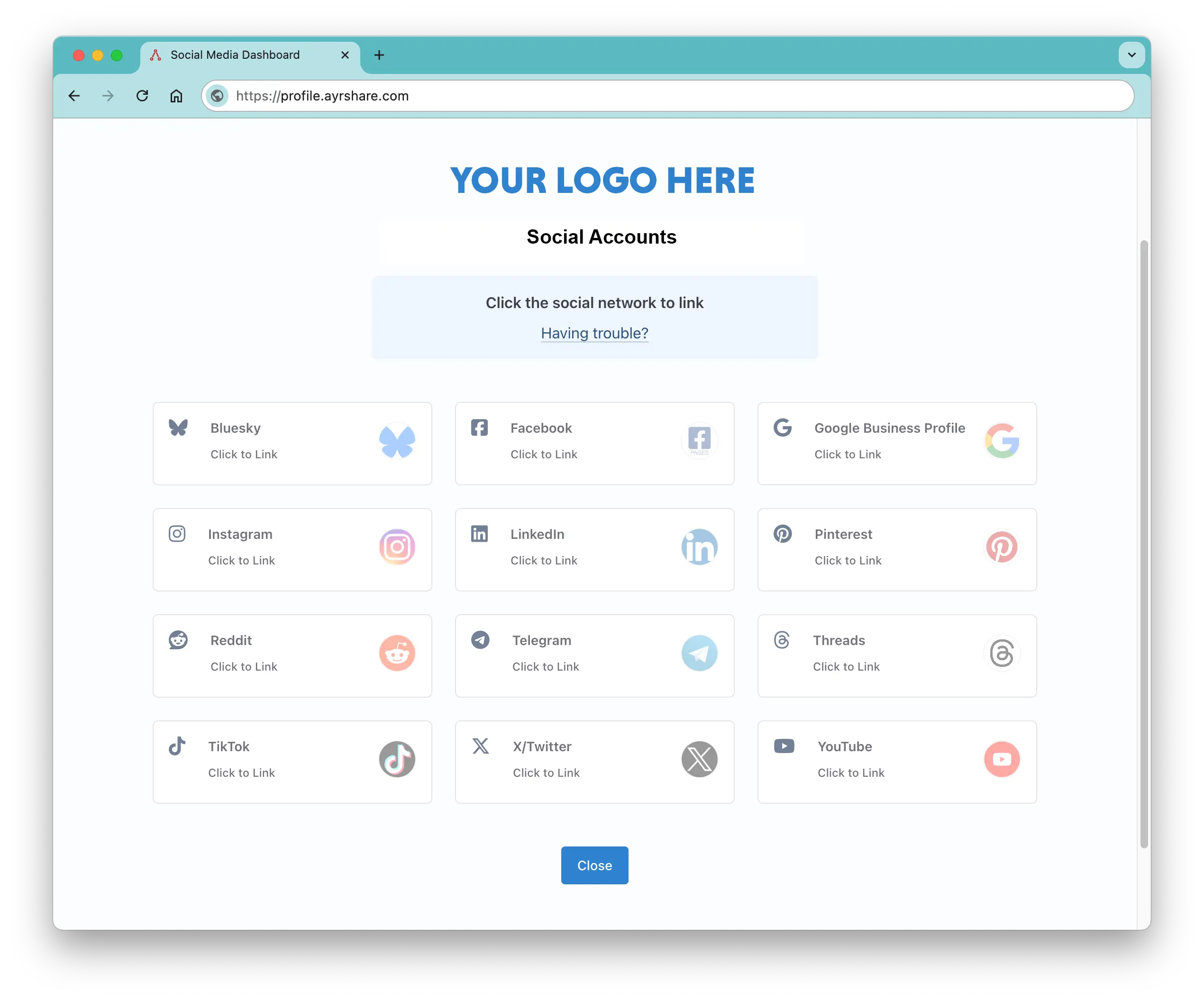
At the top of the page will be your branded logo.
**From the user's perspective they are done and have successfully linked their social media accounts**. With just a few clicks they will have their social media accounts linked and you'll be able to post on their behalf.
Behind the scenes, you'll create new profiles via the API or Dashboard, receive a Profile Key used to post on behalf of the users, and open the above social linking page by passing a JWT token to perform single sign on.
Please see the next page on API Integration for Business on how to do this.
## Social Linking Page Customization
You can customize many portions of the social linking page for either all users
or specific users. Please see each section for details. There are also specific
details for the Business and Launch Plans, with and without Max Pack.
### Business Plan and Launch Plan Customizations
-
Add your own [company
logo](/multiple-users/manage-user-profiles#update-logo-on-social-linking-page) or remove
entirely. Please see your onboarding integration guide for details.
-
Select which social networks your users can access either
[globally](/multiple-users/manage-user-profiles#set-social-networks-access) or at the [user
profile level](/apis/profiles/overview#enable-or-disable-social-networks).
-
Remove links to help pages and [add your own help
pages](/multiple-users/manage-user-profiles#help-links-visible).
-
Set the [page
redirect](/multiple-users/api-integration-business#opening-and-closing-the-social-linking-url)
for closing the social linking page.
-
Set the [top and sub headers](/apis/profiles/create-profile) on the social linking page.
You can show your user's name, their business, another message, or remove entirely.
### Business Plan and Launch Plan Max Pack Customizations
-
Personalize your social linking page appearance with your own [custom CSS
file](/multiple-users/manage-user-profiles#customize-css) - modify colors, fonts, and control
which features are displayed.
-
Customize the browser tab by adding your own [favicon and
title](/multiple-users/manage-user-profiles#change-page-title-close-button-and-favicon) to
the social linking page.
-
Edit the ['Close' button text](/multiple-users/manage-user-profiles#change-page-title-close-button-and-favicon) on
the social linking page.
-
Add [custom footer content](/multiple-users/manage-user-profiles#footer-text) to the social
linking page using text or HTML - perfect for your copyright notice or website links.
-
Set up a staging server environment to test with live social accounts, up to your plan's User
Profile cap.
**Business Plan** and **Launch Plan** customers can purchase the [Max Pack](/additional/maxpack) for
more customization options.
**Enterprise Plan** customers get
[advanced features](/multiple-users/manage-user-profiles#enterprise-features).